.svg)
Connect Dotloop to DepositLink to import deals and attach transaction receipts.
In This Article
Agent Setup
Dotloop is available to an Agent role in DepositLink. If your account has an Admin role, a separate Agent role is required to access Dotloop.
If you need help setting up an agent role, please contact customer support.
Once enabled:
- Step 1: Log in as an Agent or Team Admin
- Step 2: Navigate to My Account
- Step 3: Click the Dotloop tab
- Step 4: Click Link Account
DepositLink will redirect you to Dotloop.
- Step 1: Sign in to your Dotloop account
-
Step 2: Approve the DepositLink connection
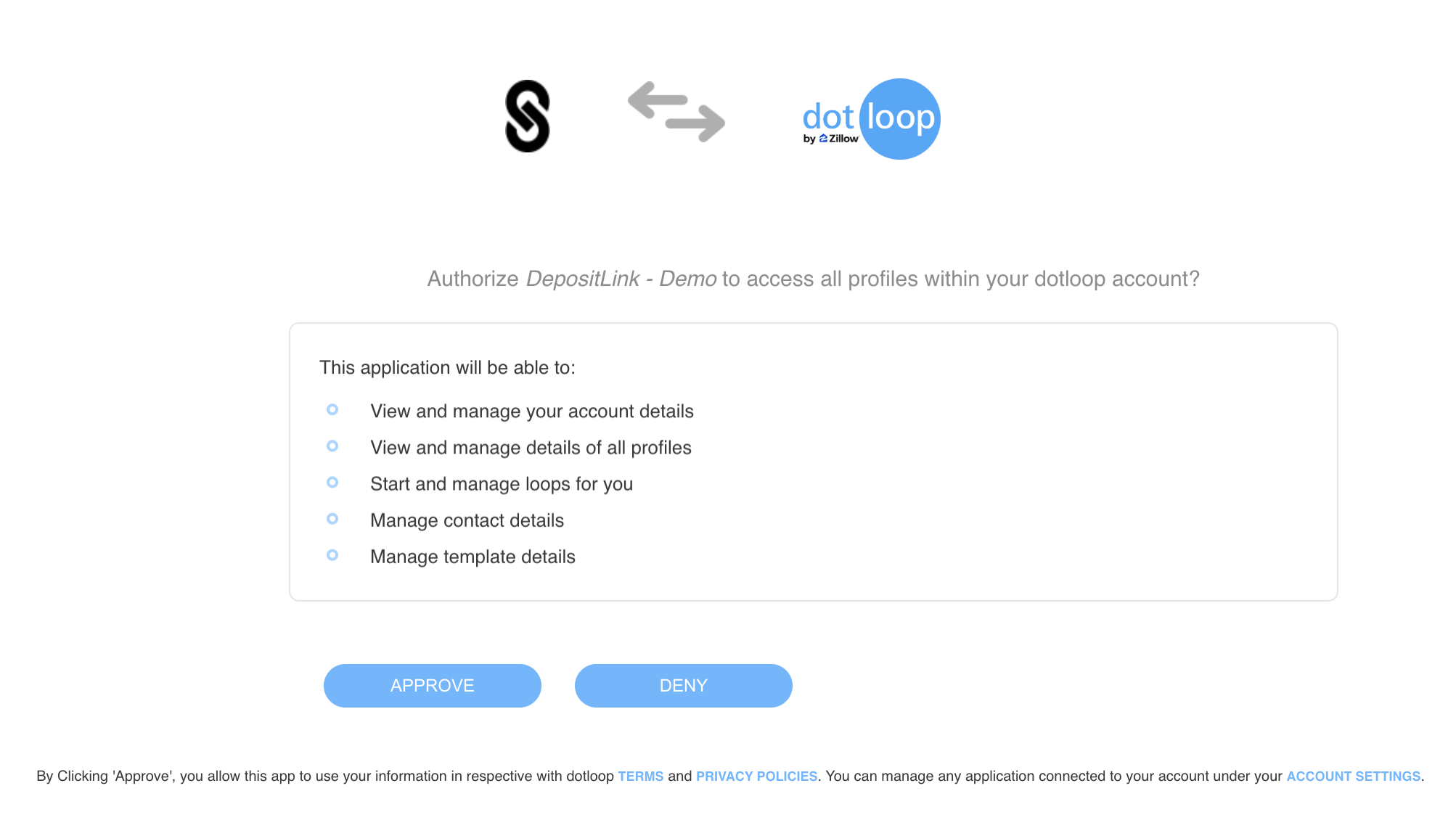
After approval, the integration is active.
Importing Loops from Dotloop
Dotloop loops and transactions can be imported into DepositLink as deals.
For more information, please refer to Dotloop's guides:
Once the account is linked, on the Deals tab, you will see a button to Import From Dotloop.
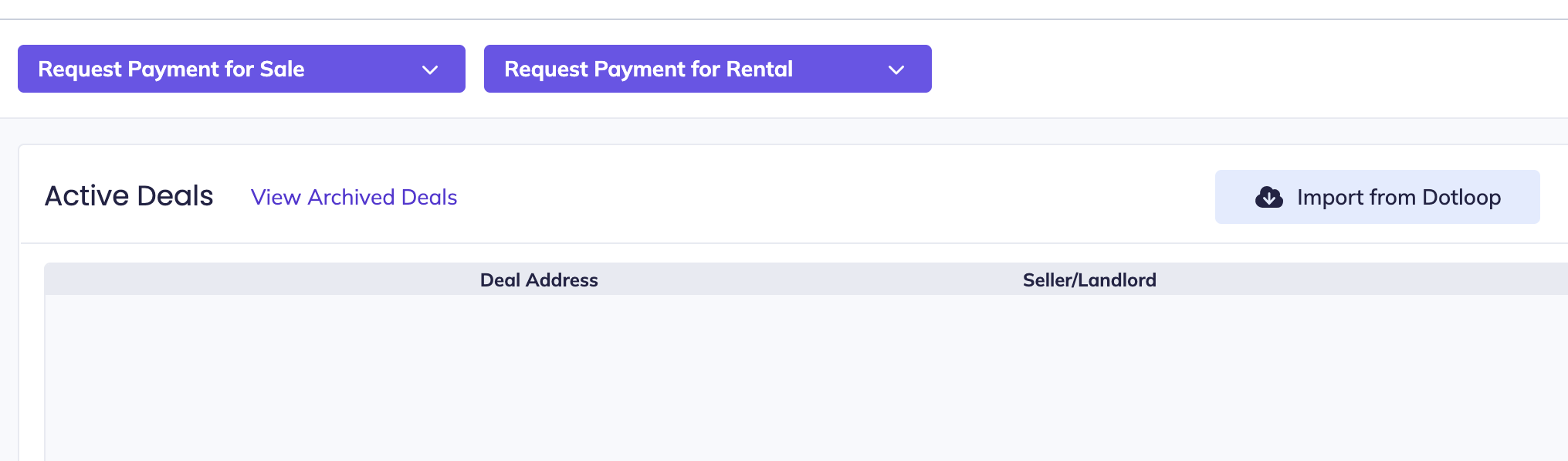
The loop will appear as a deal in DepositLink, where payment requests can be created.
Automatic Receipt Upload
When a transaction completes in DepositLink, a PDF copy of the transaction receipt is automatically uploaded to the corresponding Dotloop loop.
This is currently the only export action to Dotloop.
Common Issues
Integration automatically reconnects
If an account was previously linked, Dotloop may automatically reconnect using the saved token.
For more information on removing apps, please see Dotloop's guide: Apps
To reset the connection:
- Step 1: Open Dotloop
- Step 2: Go to Apps / Integrations
- Step 3: Remove the DepositLink app
- Step 4: Reconnect from DepositLink
Loop not importing
- Ensure the loop exists in Dotloop
- Confirm the agent account is properly linked
- Check that the loop has an address or an identifiable name